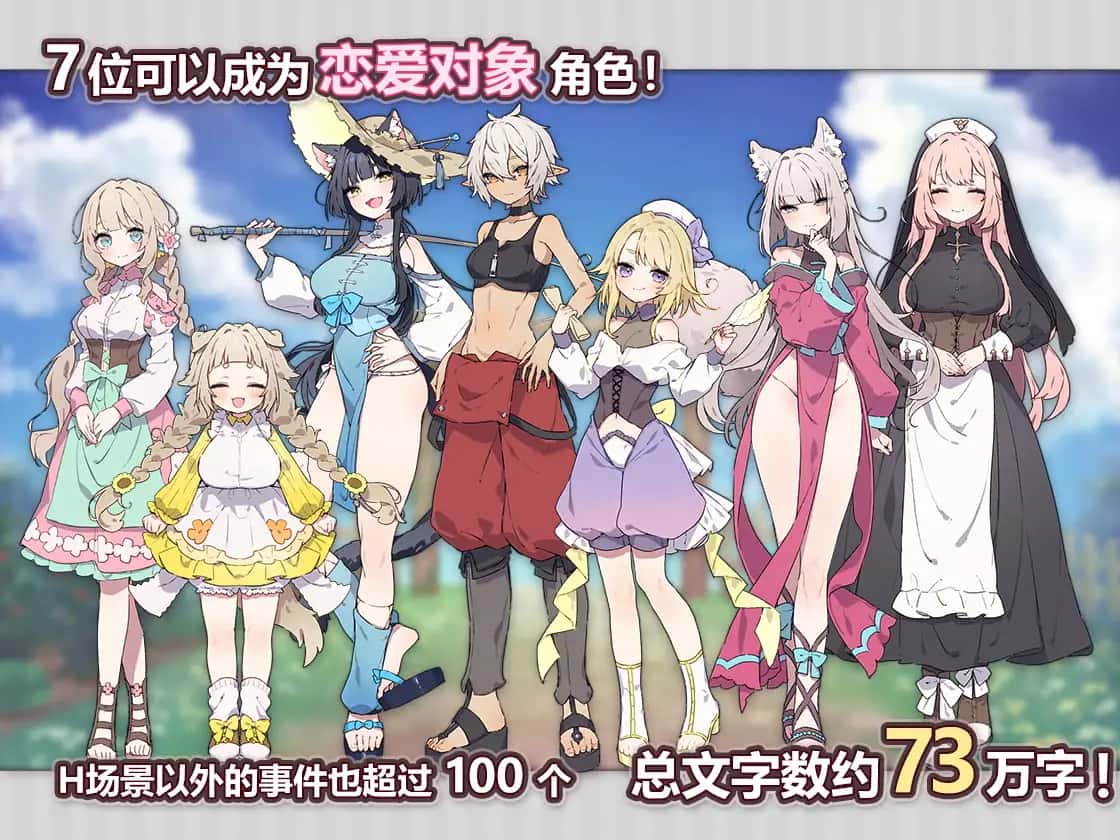
Forestia-小镇的牧场生活攻略-4大基础设施
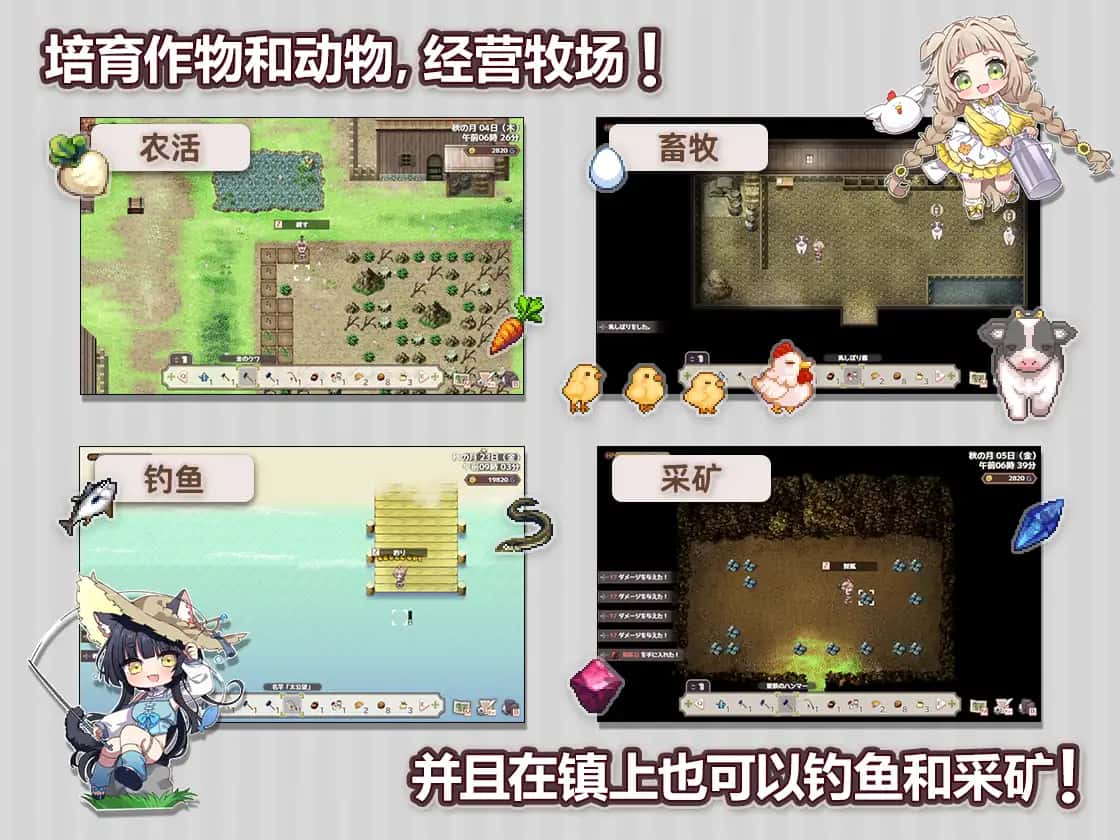
1.1种植业
种植业是本作最赚钱,最省事的一个系统,但是回本慢,投入高的特点导致我们在大前期只要完成规定的种植任务即可,十天左右解锁卷心菜后,再开始大批量种植作物。
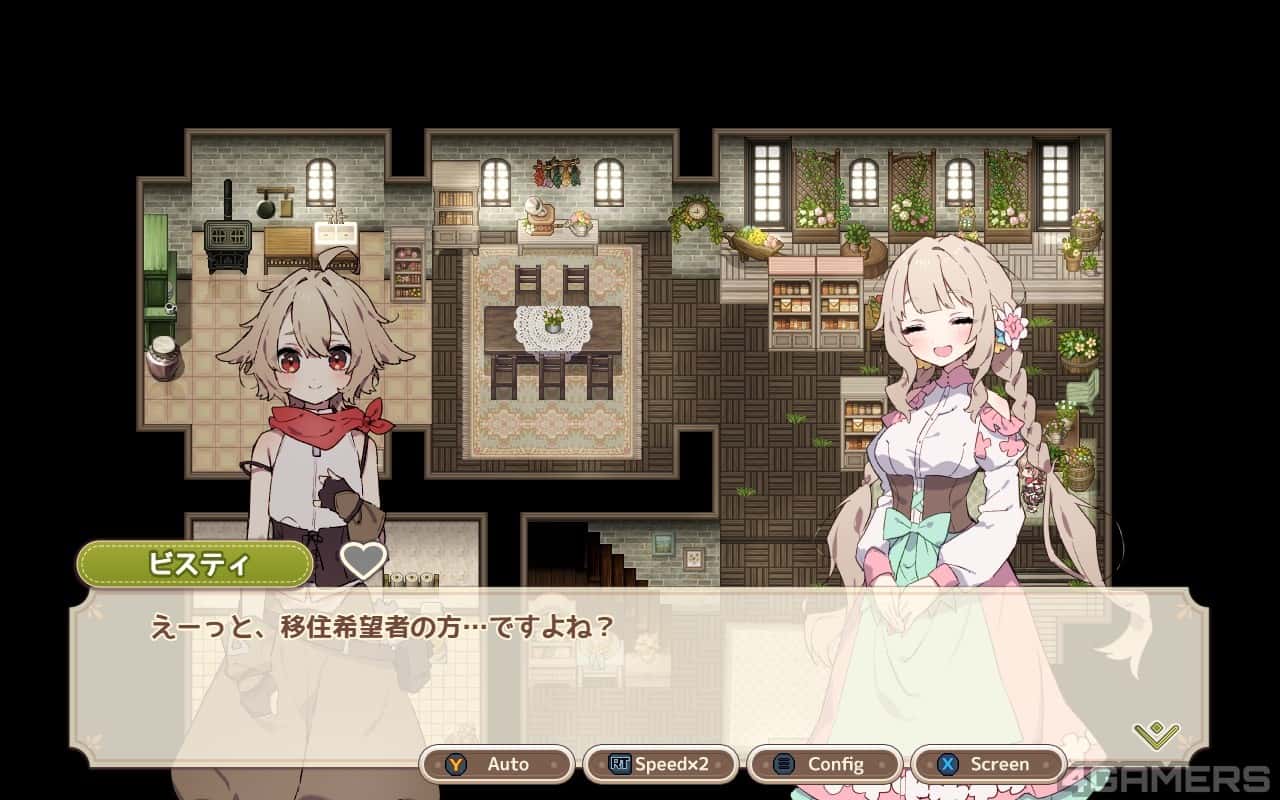
开局我们会收到一些芜菁的种子,收获后给ビスティ(碧丝蒂,后面简称镇长女儿)完成任务可以解锁胡萝卜和土豆,之后可以解锁卷心菜,前三种作物的收益都不高,我们只需要少量种植就可以了。
从卷心菜开始,作物的收益将会大幅提高,如果我们全部种满,在十天后就至少能收获15*15*840=189000G,初步实现经济自由。
收获第一批卷心菜后,我们就可以种植草莓和其他作物了。种草莓的收益比卷心菜还高,并且只要5天就可以成熟,可以快速回本,推荐第二批作物直接种草莓直到我们解锁夏天的菠萝为止。(但是笔者的菠萝还没收获就已经通关了)
种子没有不应季的惩罚,但是每个季节花店的种子是不同的,所以我们最好在夏天之前屯一批草莓种子。 (另外要注意每个季度的第一天花店不开门,请计划好你的收获时间)
当我们第一次卖出一种作物时,以后就可以在花店直接买到他们了,所以除非是镇长女儿的任务需求,否则除了卷心菜草莓菠萝,其他作物我们都只需要种一个。
当然,为了完成任务,我们可以在左上角留一小片5*5的地用来种植其他作物。(主要是每个角色表白用的花,每种十株)
有一个必备的技巧是,我们在收获之前可以先吃一个加收获量的料理,这里推荐的料理是(根据获得难度为顺序):曲奇(食堂购买,25%加成)黄色草药(50层以后矿洞获得,25%加成)蛋糕或者芝士蛋糕(厨房制作,50%加成)巧克力蛋糕或煎饼(厨房制作,75%加成)松茸饭(厨房制作,100%加成)菠萝蛋糕(厨房制作,100%加成)。
以防万一还是说一下,水壶可以像锤子一样在ザナ(扎娜,后面简称铁匠)那里升级,升级后长按蓄力可以批量浇水,最强的水壶可以一次浇5*5。
1.2畜牧业
畜牧业是本作最不赚钱,用时最久的一个系统。我们要先去找ノーティ(诺蒂,后面简称建筑师)建好鸡舍/牛棚,レトリー(莱特莉,后面简称狗狗)就会送我们一只鸡/牛,每天刷毛说话增加它的好感度,成年动物就会给我们产蛋/奶。因为我们后期制作的很多料理都需要用到蛋奶,所以非必要的话别卖。
畜牧业的等级变高后,我们给女主们送礼会获得一定的好感度加成,所以尽快建好鸡舍牛棚是很有必要的。
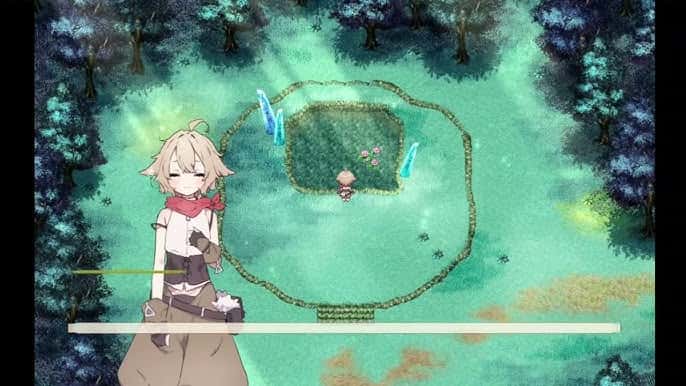
除了第一只鸡和牛,新动物的来源是孵蛋器孵和妊娠怀孕,或者花高价从狗狗家买,牛的话建议是买,因为妊娠的时间太太太长了。
注意牛不要一次性买满,因为狗狗的一个任务是必须妊娠得到一个小牛,而你直接买得到的牛是大牛,扩建牛棚的任务在后面,就会卡关,笔者自己卡了很多天才发现在手账处c键卖牛,哭了。

1.3渔业
渔业是最耗时间,最低投入,来钱最快的一个系统。种出卷心菜前我们的主要经济来源就是钓鱼。
有多个钓鱼点,拿到金钓竿之前建议去铁匠家旁边的瀑布处钓鱼,因为这里不用蓄力就可以到最深处。有了金钓竿之后在晴天去海边钓,雨天在瀑布处钓。因为雨天虽然大鱼出率会上升,但海边在雨天反而会钓到很多垃圾玩意。(注意本自然段是笔者的经验之谈,不一定完全准确。)
雨天和深夜钓鱼之前建议吃一个蓝色草药,减缓疲劳。注意本游戏的强制睡觉与星露谷有所区别。有两个条件,一是到第二天凌晨6点,二是因为深夜或者雨天过度工作导致疲劳度过高。Hp归零不会导致昏迷,疲劳度没有面板可以直接显示,但是会有提示。
在ローリエ(萝丽艾,后面简称修女)那里可以买到各种药剂,蓝色药剂可以完全消除疲劳影响,蓝药也可以用蓝色药草在工作台处合成。去よしの(吉野,后面简称狐狸)那里可以泡澡,直接清空疲劳度。
说到泡澡,就简单介绍一下澡堂。每次只花100G就可以直接把hp回满,可以先磕一个绿色草药提高最大hp再泡。泡澡不仅是非常便宜的回复hp手段,而且可以加狐狸的好感度,而狐狸的好感度是最难加的,建议每天都泡。
没有料理可以增加钓鱼的收获量,只能增加大鱼出率,但是有些小鱼比大鱼贵,所以不用太在意钓鱼时候吃什么东西,简单的回复hp就可以了,食堂里1000以下的食物都可以。
后期我们做任务料理需要一只虾,一只鲣鱼,可以注意留一下。
1.4矿业
矿业是最麻烦,推进度最困难的一个系统。
我们下矿的时候可以遇到基础石头,带水晶的石头和魔力水晶矿。带水晶的矿石敲了大概率出宝石,宝石是下矿的主要收入。魔力水晶矿只在整十倍的层数里出。我们在铁匠处有一个收集西西历亚石的任务,分别在26和76层里有一个,完成任务后可以启动升降机。
顺带一提,通过钓鱼/女神购买得到的历历西亚石是不能启动升降机的。
矿洞里的杂草采了之后有概率出草药,前25层是绿的,后面还有红的黄的黑的和白的。
为了能在前期顺利到达26层,建议携带两个博洛尼亚肉酱面(食堂购买),可以提高锤子的伤害,这样就可以一锤一个矿石了。后期肉酱面的加成不够,必须嗑红药。
为了升级工具和完成改建委托,前期铁,铜,银,金都不建议卖。白金依石前期可以卖,后期保证求婚的时候有十个作结婚戒指就可以了。圣铁矿完成任务需要一些,缺钱可以卖。其余的宝石可以全部卖掉。每个角色对应的宝石第一次送有25好感度加成,猫猫/建筑师送青金石/紫水晶可以加100好感,这两种宝石可以留一些。铁匠送红宝石也加100好感但是送炸薯条更划算。
后期有钱了,下矿只用带红药,蓝药和巧克力蛋糕就可以了。蛋糕可以加收获量。
矿洞的最深层是100层。